Read the Shopping page
Shopping tells you, topic by topic, whether your products are on the shelf when AI engines answer a buying question, and where they land on it.
Shopping tells you, topic by topic, whether your products are on the shelf when AI engines answer a buying question, and where. It lives under each topic, next to Visibility and Competition, and reads the answers of that topic's own prompts on ChatGPT and Alexa Shopping.
The page answers three questions, top to bottom:
- Am I on the shelf? The verdict and the three rates.
- Who is on it with me? Share of shelf, Top products on this topic and Average Brand products position.
- Who captures the sale, and from where? Who captures your demand and the Sources tab.
Before you start: nothing to set up
Shopping reads the visibility prompts of the topic. Every prompt feeds Shopping by default, so there is nothing to switch on: the page fills at the next refresh, on your plan's cadence.
The Modules column of the Prompt Wallet shows what each prompt feeds: Visibility, Shopping, or both. To take a prompt out of Shopping, remove its Shopping chip.
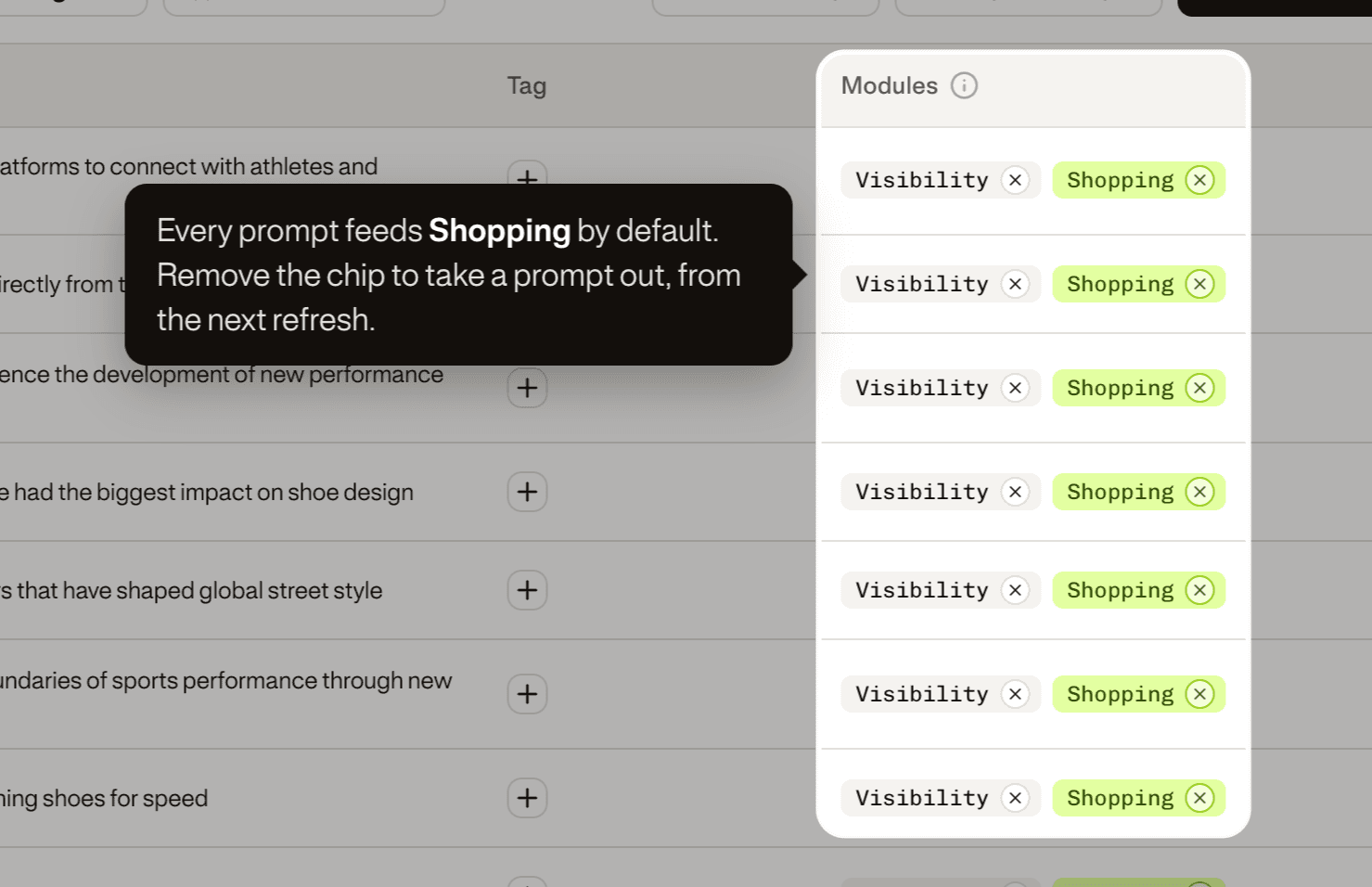
The change shows at the next refresh, not right away. The history of past runs is kept, but the prompt no longer runs for Shopping. Remove a chip only when the prompt has no buying intent.
Step 1: Read the verdict
The page opens on one sentence: on this topic, your brand leads the shelf, makes it but not the front of it, or misses it, with the figure that decided. Under it, how many visibility prompts feed Shopping.
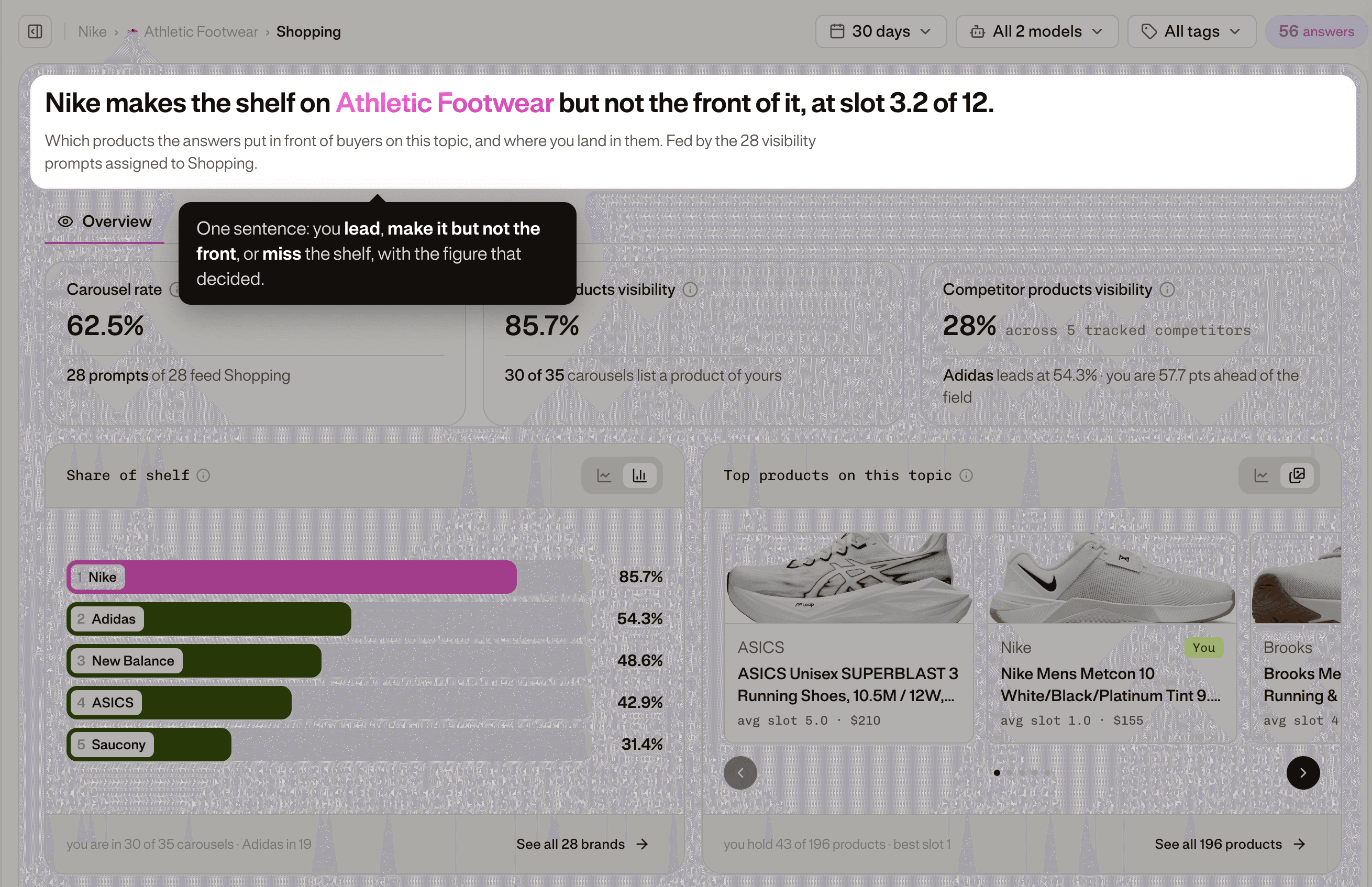
The verdict is decided in two steps, across every product of your brand on the topic:
- If fewer than half the carousels list one of your products, you miss the shelf, whatever your slot.
- Otherwise your average slot decides: 2 or better, you lead; deeper, you make it but not the front.
Filters and raw answers
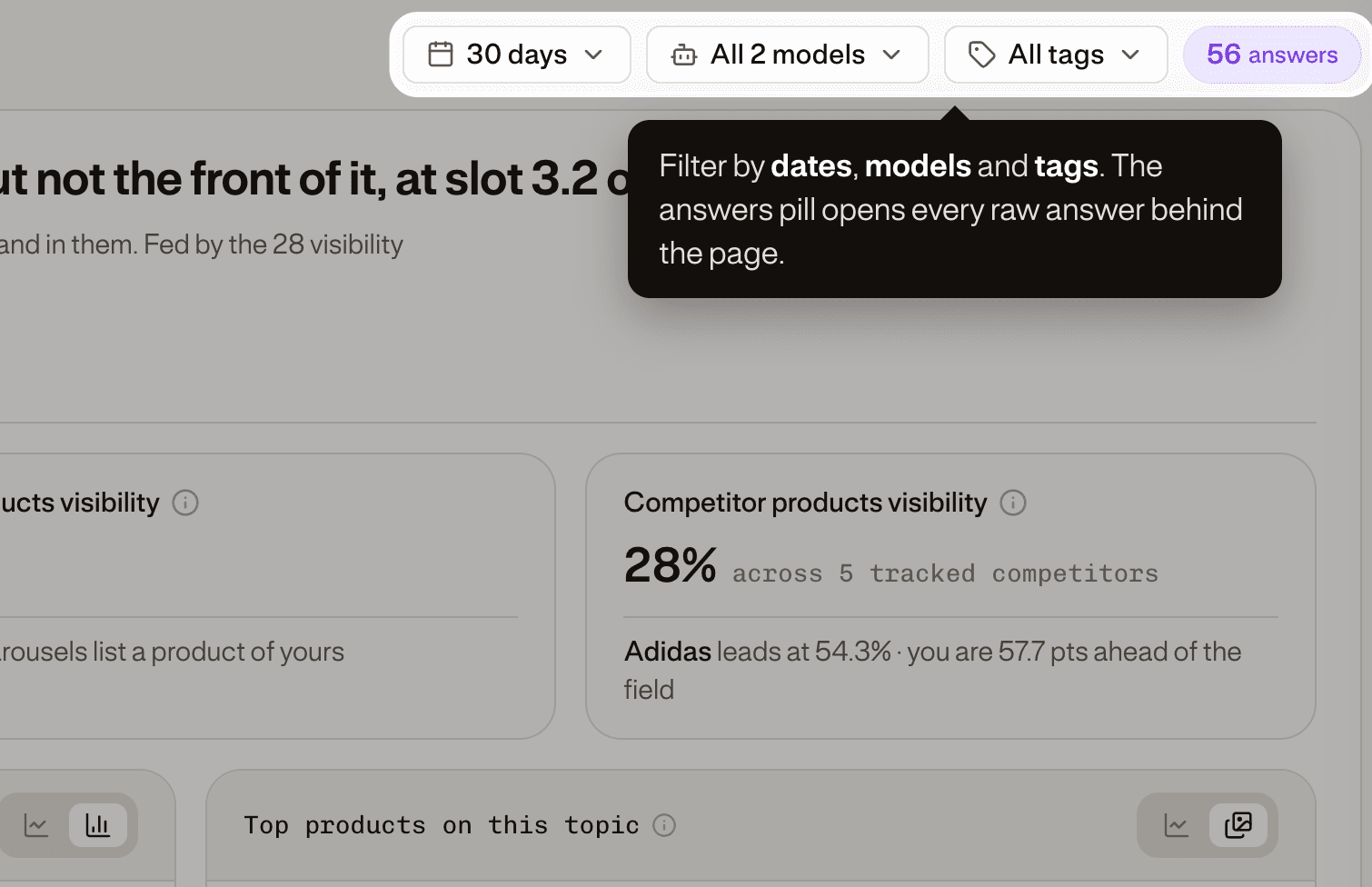
Three filters sit at the top right: dates, models and tags. Everything on the page follows them. Next to them, a pill counts the answers behind the page; click it to read every raw answer and check any figure against it.
- Alexa Shopping is only offered in the markets where Amazon serves it.
- With Alexa Shopping alone, the merchants donut and the prices disappear: Alexa cards carry no price and no merchant.
Step 2: Read the three rates
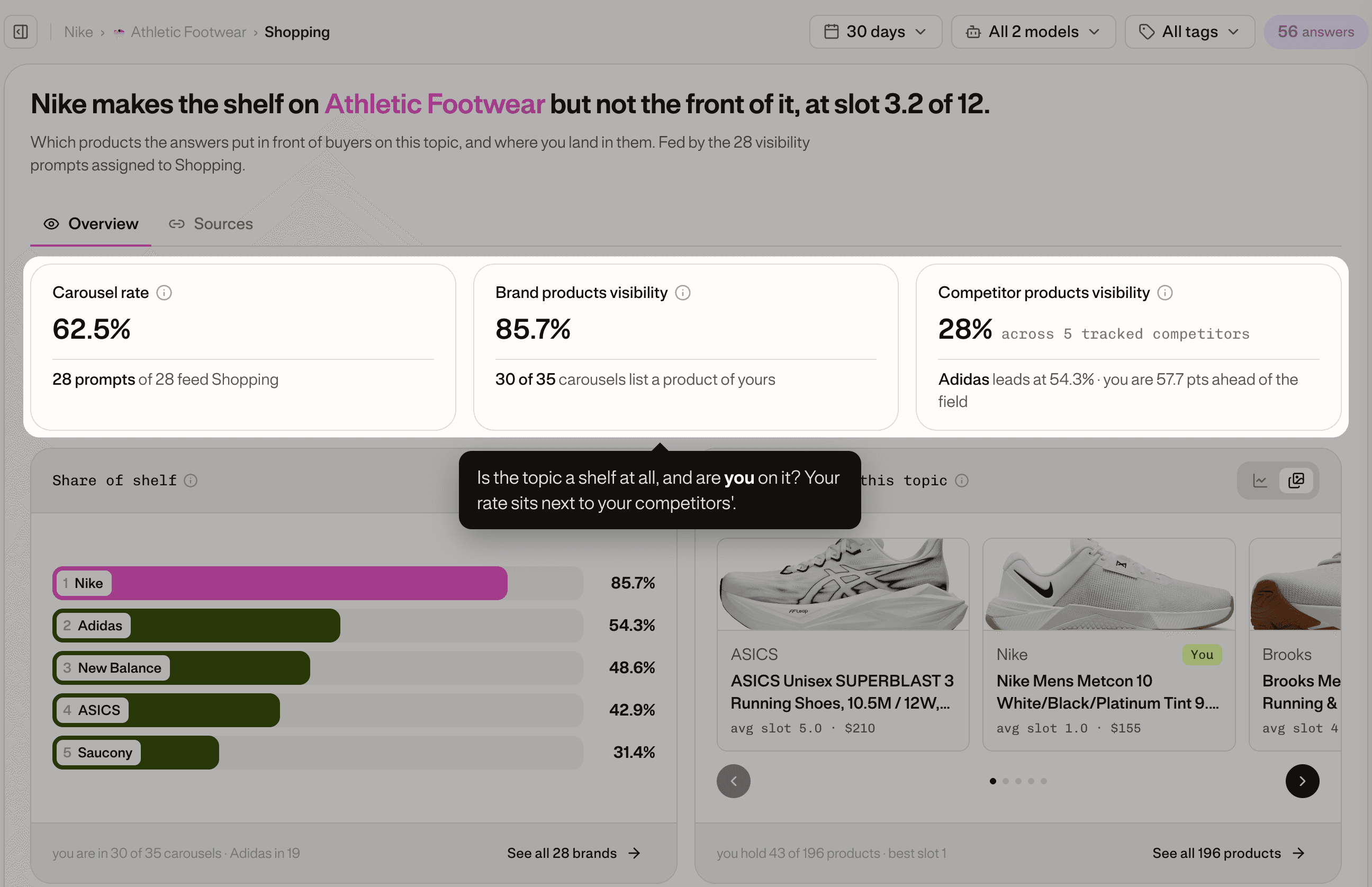
| Rate | What it measures | How to read it |
|---|---|---|
| Carousel rate | The share of answers that display a product carousel rather than text only | A low rate means the engines answer this topic in prose: every other figure then rests on few carousels |
| Brand products visibility | The share of carousels that list at least one of your products | The figure the verdict gates on. It counts presence, not slot: being listed fifth still counts |
| Competitor products visibility | The same measure for your tracked competitors, averaged | The caption names the leader and your gap. One strong rival can hide behind weak ones |
The grey from X% under a rate is its value over the previous period.
A competitor absent from every carousel counts as zero in Competitor products visibility. Read the leader named in the caption, not only the average.
Step 3: See who is on the shelf
Share of shelf ranks every brand on the topic's carousels by the share of carousels it appears in; your brand is pink. Switch between the ranking and the trend over time.
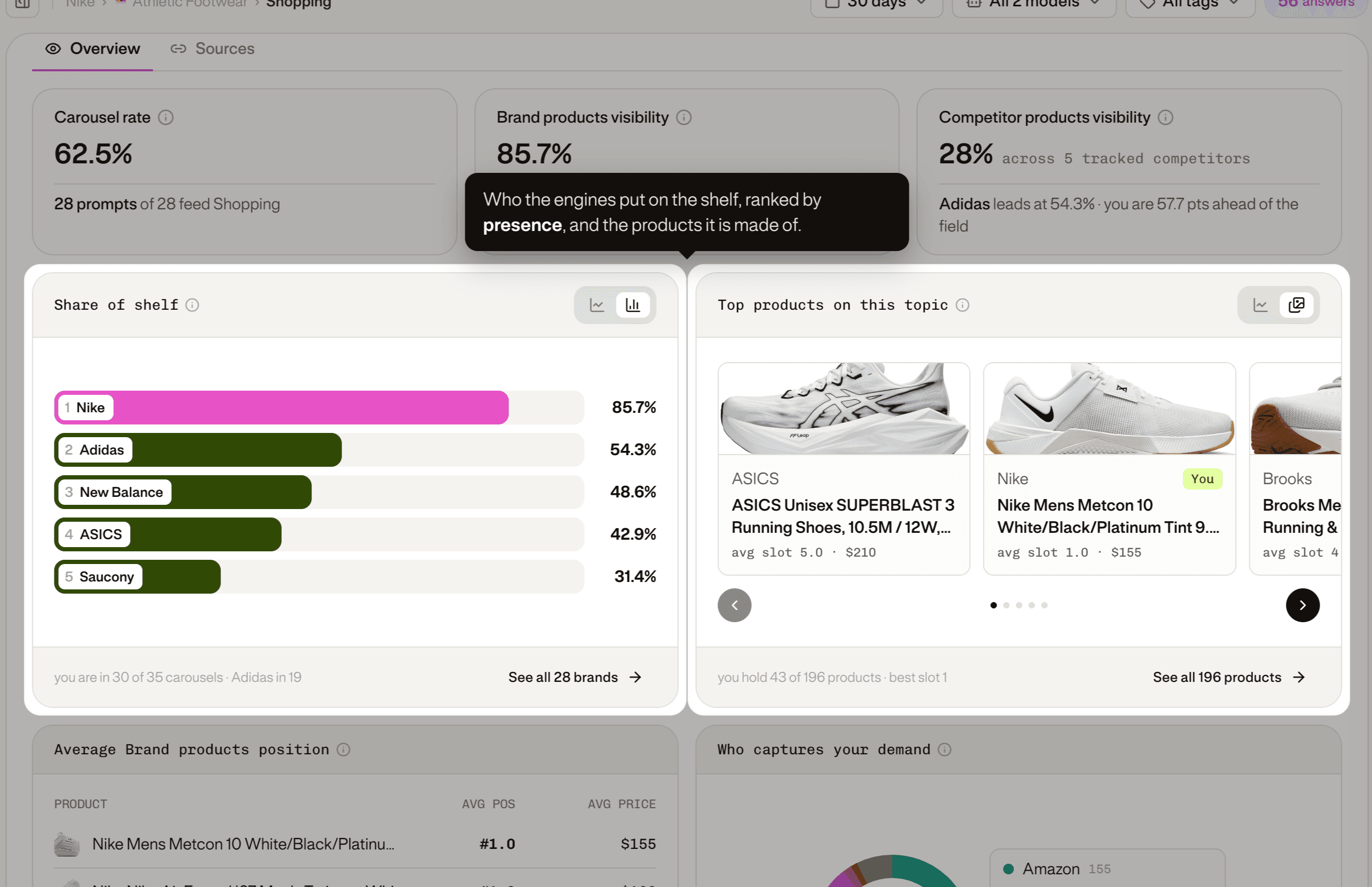
- It ranks presence, not card count: two cards in one carousel do not weigh more than one card in every carousel.
- Retailers that sell products appear as brands here too.
Top products on this topic lists the products the answers put in the carousels, ranked by how often they came back, with their image, average slot and price. Click a product to see every appearance: date, prompt, model, slot, price and retailer. That is the answer to "where did you see this?".
Step 4: See where your products land
Average Brand products position lists your own products on the topic's carousels, best average slot first, with the average price the answers quote for each.
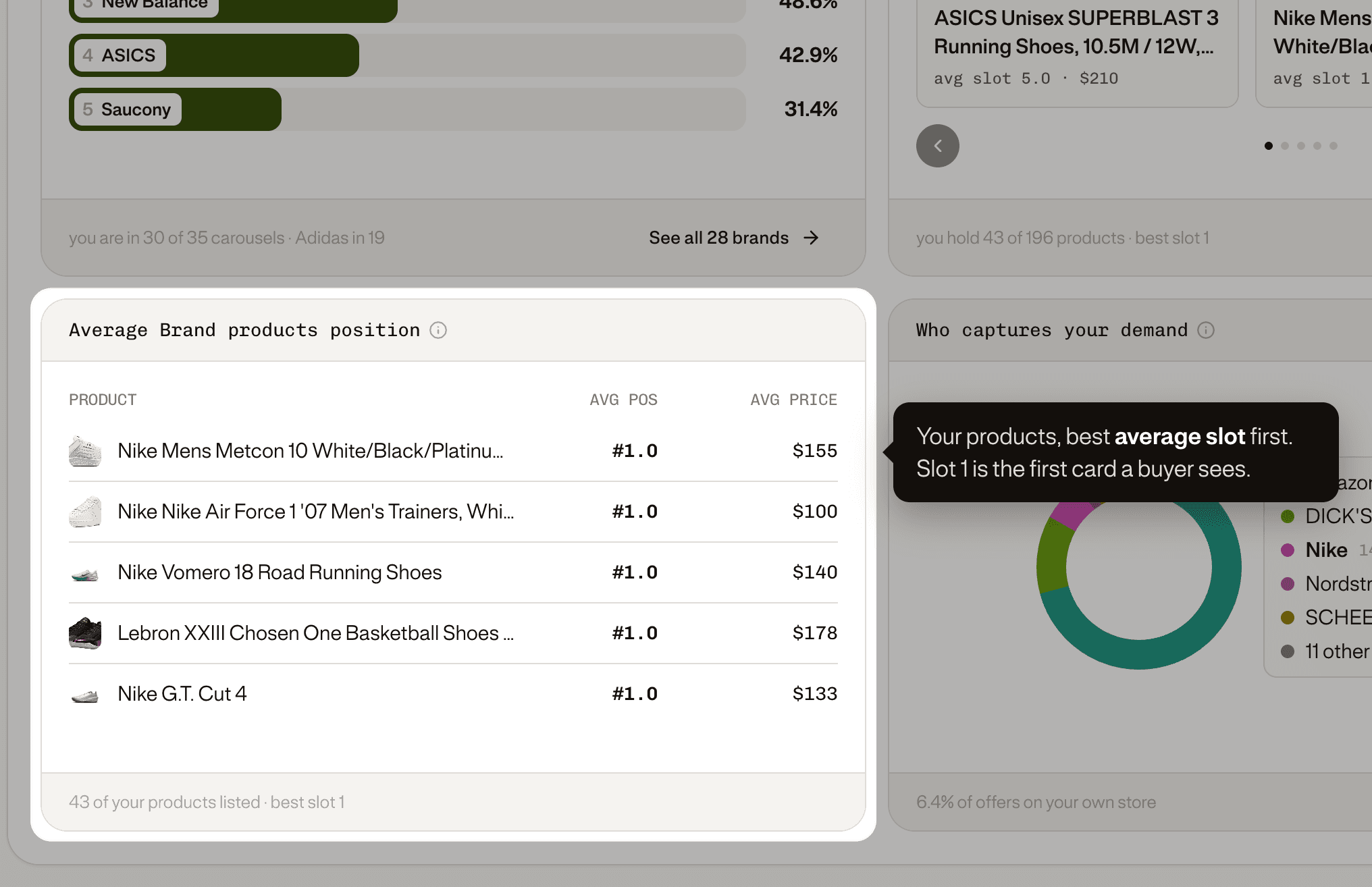
Slot 1 is the first card a buyer sees. An average of 2.5 can hide a first place in one answer and a fourth in another: the product detail shows each one.
Step 5: See who captures your demand
Who captures your demand splits the offers on this topic between merchants, as a donut: your own store against marketplaces, retailers and resellers. One offer is one product card.
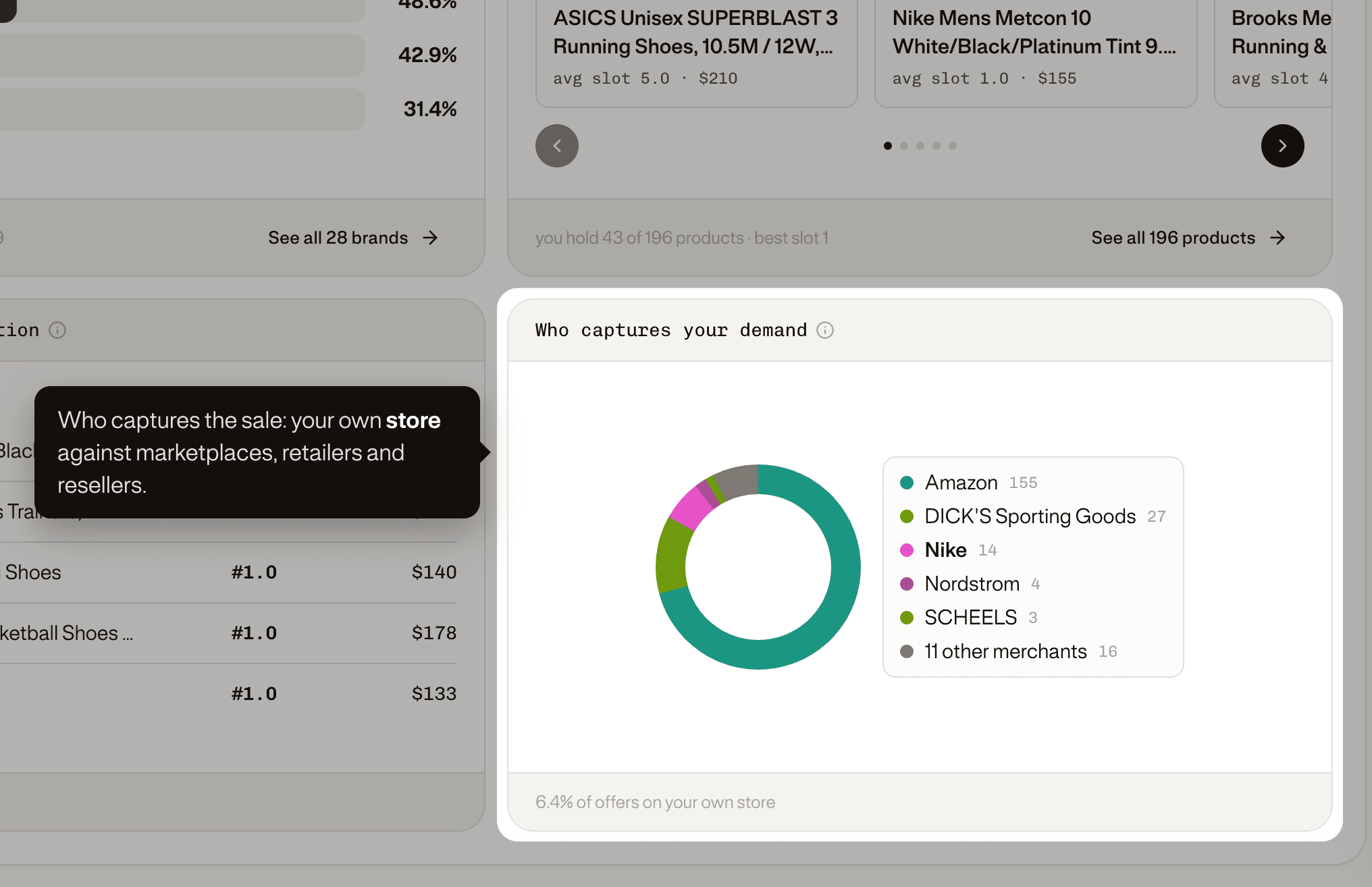
The brand ranking tells you who the engines recommend; this card tells you who captures the sale. Your store is always shown, even outside the top five, and the caption gives the share of offers it holds.
Step 6: Explain a gap with the Sources tab
The Sources tab, next to Overview, shows where the product cards come from:
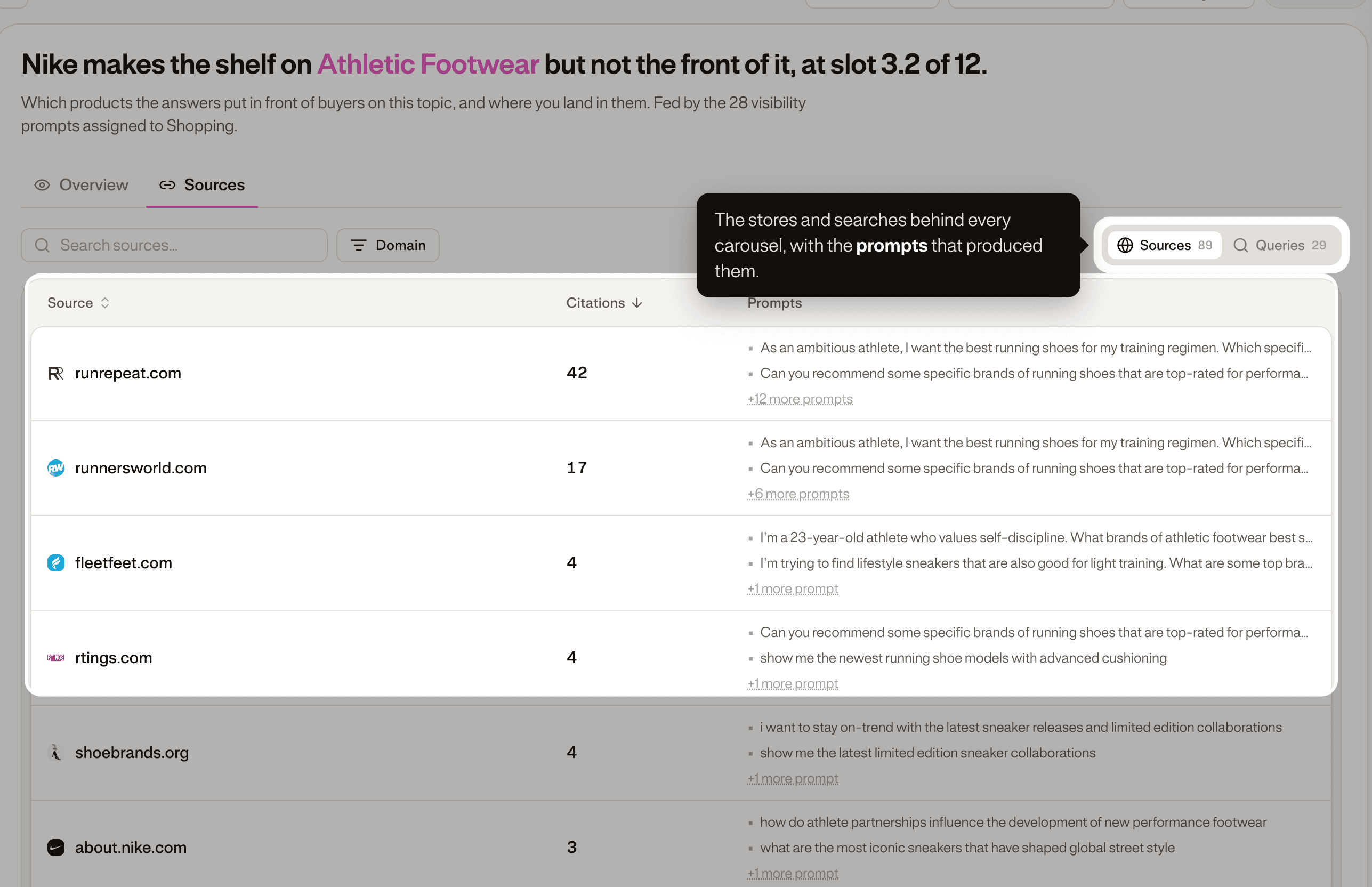
- Sources: one row per store, or one row per page with the URL view.
- Queries: the searches the engine ran behind each carousel.
Each row carries its citations and the prompts that produced it. Queries are not your prompts: one prompt can trigger several searches, and the prompts column names them.
Good to know
- Shopping lives under each topic. The former Setup and Prompts tabs and their groups are gone: your topic's prompts feed the page instead.
- Shopping runs at every refresh, on your plan's cadence. There is no manual run.
- A question? Your GetMint Customer Success Manager can walk you through it.
Key takeaways
- 01Shopping is a topic page, fed by the topic's own visibility prompts. Every prompt feeds it by default.
- 02To take a prompt out, remove its Shopping chip in the Prompt Wallet. It applies at the next refresh and stops the prompt on that module.
- 03The verdict: under half the carousels, you miss the shelf; otherwise an average slot of 2 or better means you lead.
- 04Carousel rate says whether the topic is a shelf at all, before asking where you stand on it.
- 05Share of shelf ranks presence, not card count. Who captures your demand shows who takes the sale.
- 06The Sources tab explains a gap: the stores, pages and searches behind every carousel.